
Drafting an order creates an ORDER TEMPLATE for popular products that can be re-used at a later time. It will save the customer or recipient information if entered.
- After entering products that are popular for the season or that you sell frequently, click MENU located on the top RIGHT of the POS screen.

- From the MENU drop down, select DRAFT ORDER.
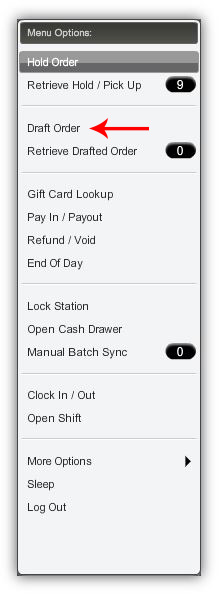
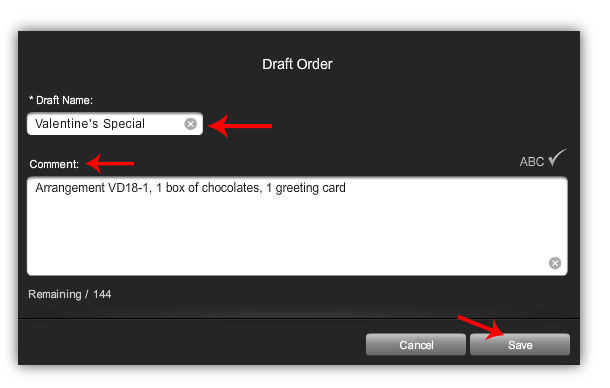
- After you click DRAFT ORDER from the menu drop-down, a window will appear for you to give the draft a name and enter comments if necessary.
- When the desired fields are completed, click SAVE.
- To retrieve your saved draft, click on RETRIEVE DRAFTED ORDER from the MENU drop down.
- Select the draft order you previously saved.
- Once you have selected the desired order, it will load the order into the respective fields on the POS screen.
Note: A Draft Order is a saved Template for re-use and it differs from an order placed On Hold.
Comments
0 comments
Please sign in to leave a comment.