
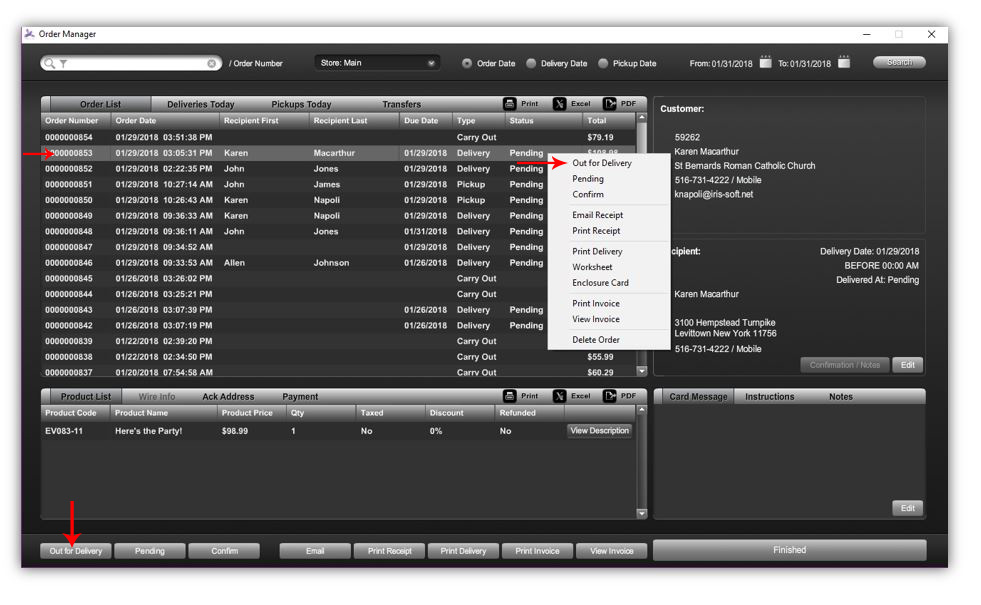
- To change the status of a delivery order, locate the desired order by clicking on the ORDER MANAGER button in the bottom LEFT corner of the POS screen.

- Once you have located the desired order, click on the ROW that the order is in (once selected, it will appear a lighter gray than the rest of the orders).
- To identify that your order is out for delivery, RIGHT CLICK and select OUT FOR DELIVERY or click the OUT FOR DELIVERY button at the bottom LEFT of the order manager screen.
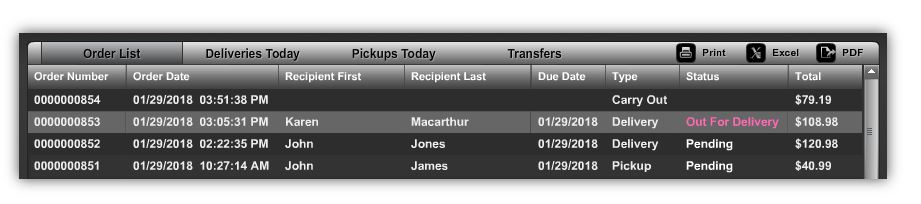
- Once marked OUT FOR DELIVERY, the order will show OUT FOR DELIVERY in pink under status.
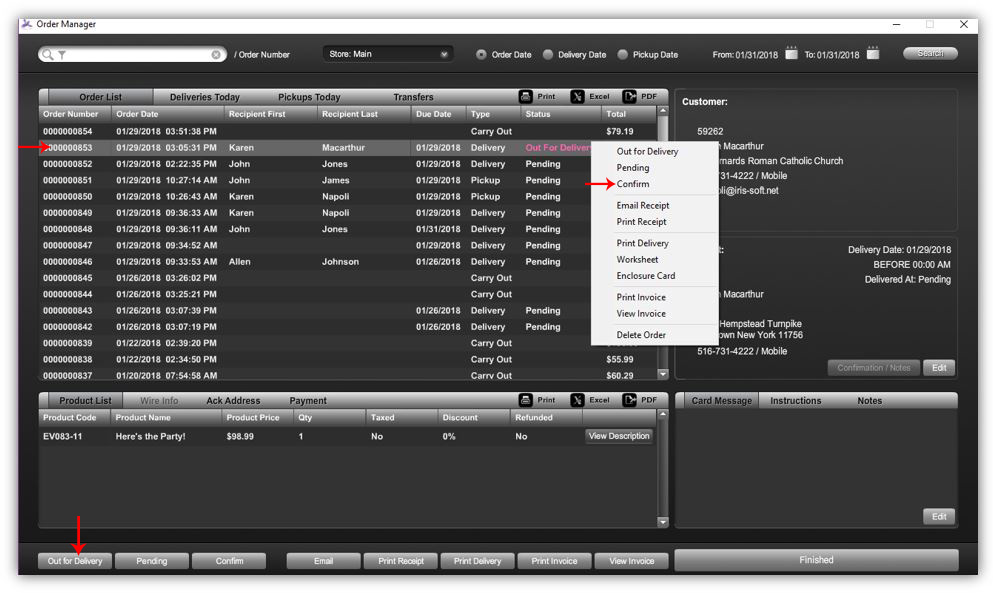
- Once the deliveries have been done for the day, you may mark the delivered order as CONFIRMED. Select the order then RIGHT CLICK and select CONFIRM or click the CONFIRM button at the bottom LEFT of the order manager screen
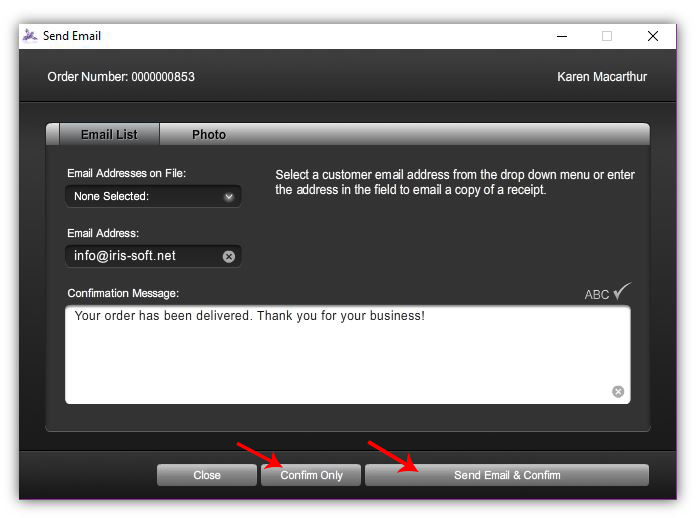
- Once you have selected CONFIRM from the menu, a new window will come up. You have 2 options - CONFIRM ONLY (confirm without sending an email) or SEND EMAIL & CONFIRM.
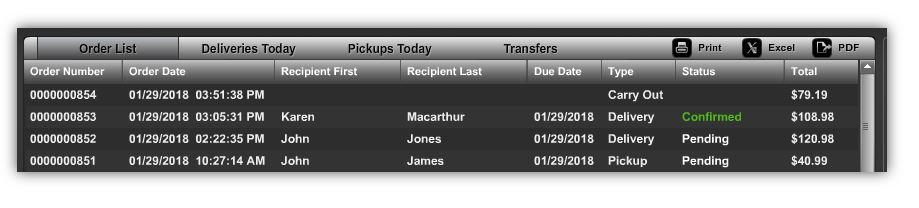
- After you confirm the order, under the status column it will show in CONFIRMED in green.
Comments
0 comments
Please sign in to leave a comment.