
By using COD as a payment method, it allows the customer to place an order and pay at the time of pick up.
1. Selecting COD as Payment Method
- Once products are selected, click the green PROCESS PAYMENT button in the bottom right corner.

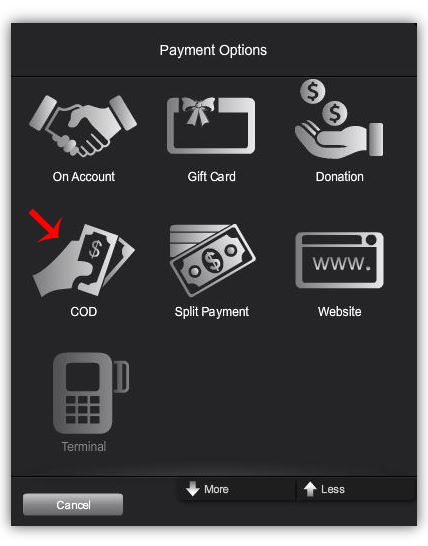
- Select COD as the desired payment method.
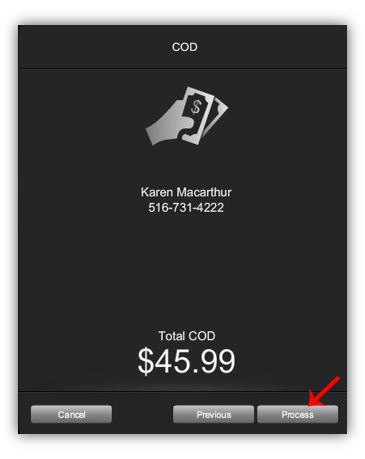
- Verify the customer details in the pop up window, if all are correct, click PROCESS.
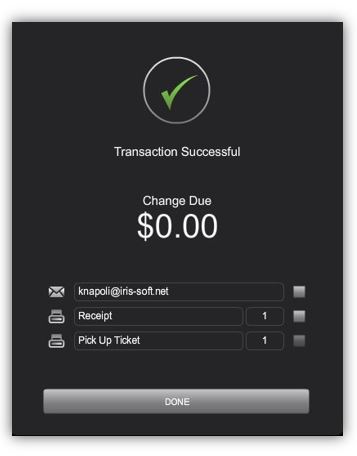
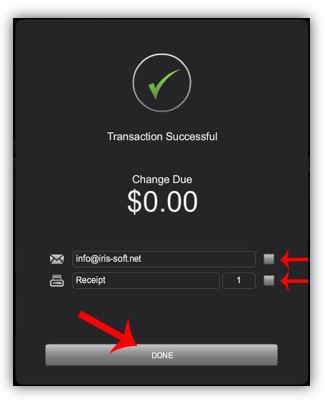
- Select desired receipt preference.
- Once desired receipt method is selected, click the DONE button.
2. Retrieving a Pick Up Order & Completing a COD Order.
- Click on MENU on the top of the POS screen.
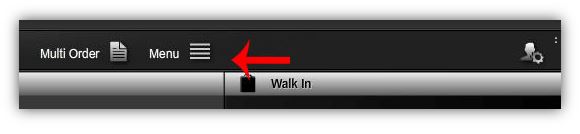
- Select RETRIEVE HOLD OR PICKUP from the MENU drop down.
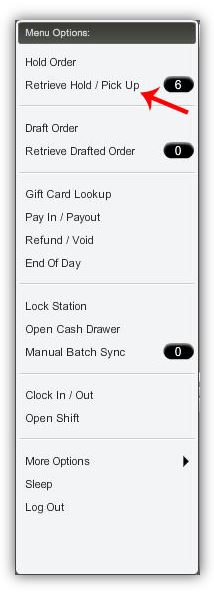
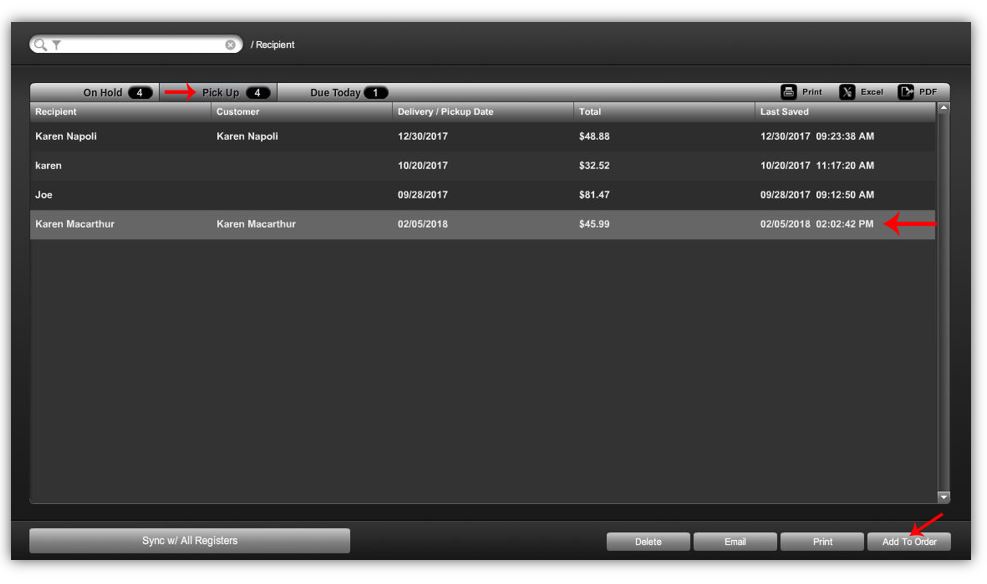
- In the ORDERS ON HOLD / PICK UP window, click on the PICK UP tab.
- Select the desired order (selected order be highlighted in a lighter gray).
- Once order is selected, click ADD TO ORDER at the bottom right of the screen.
(The order that was taken as a PICK UP, will populate in the POS screen.)
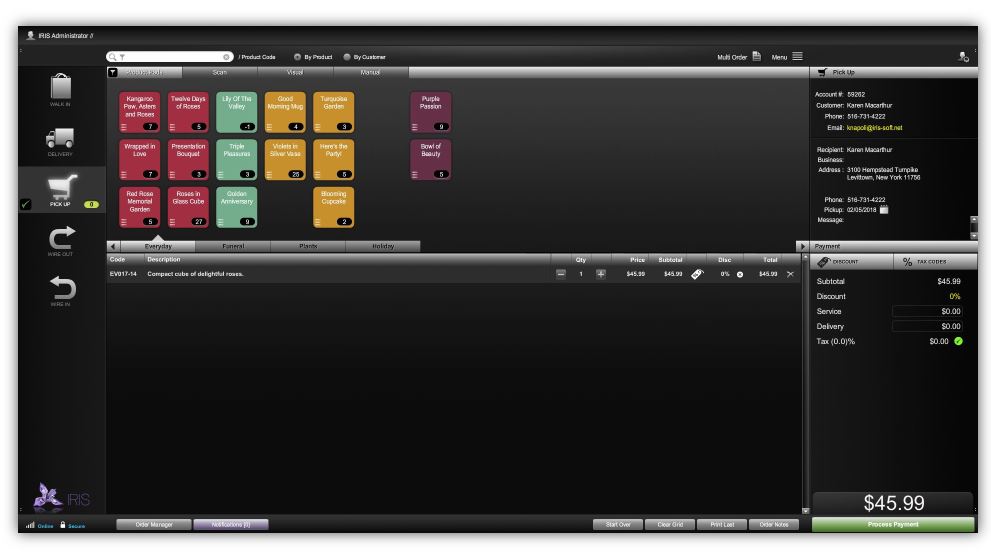
- Click the green PROCESS PAYMENT button in the bottom right.
- Select desired PAYMENT METHOD from the pop-up.
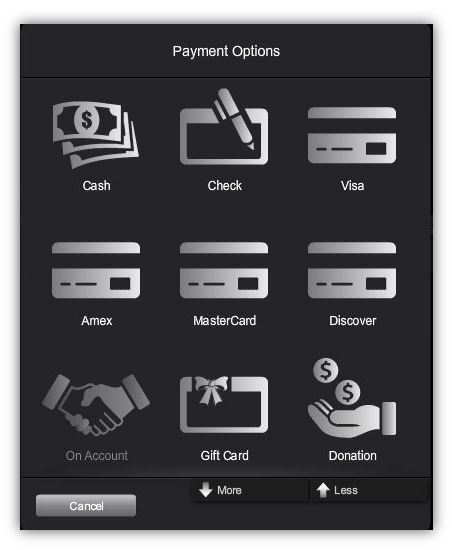
- Select PROCESS once payment information is completed.
- Check the box of the desired receipt type (email or print) in the pop-up box.
- Select DONE to complete transaction.
Comments
0 comments
Please sign in to leave a comment.