
You would use the split payment option when there is more than one payment method that is being used in a single transaction.
- Once products are selected, click the green PROCESS PAYMENT button in the bottom right corner.

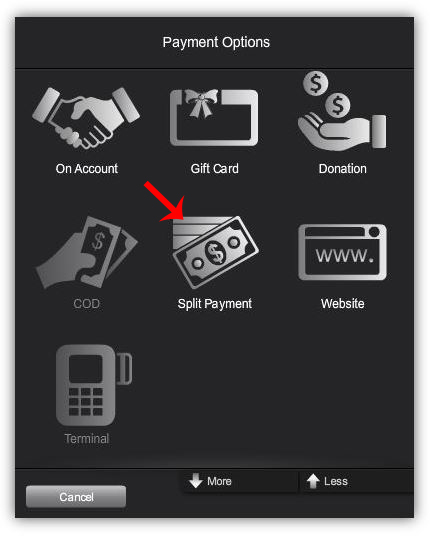
- When using multiple payment methods for one transaction, select SPLIT PAYMENT from the payment options screen.
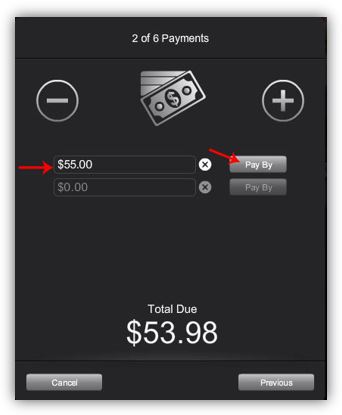
- Enter the FIRST PAYMENT AMOUNT (gift card balance), into the first field. Once entered, click the PAY BY button.
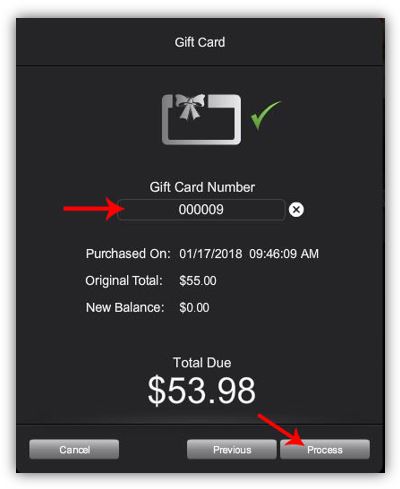
- Select FIRST PAYMENT METHOD (gift card) from the PAYMENT OPTIONS screen.

- Enter the PAYMENT DETAILS (gift card number), and click PROCESS.
- Select desired receipt preference.
- Once desired receipt method is selected, click the CONTINUE TO NEXT PAYMENT button.

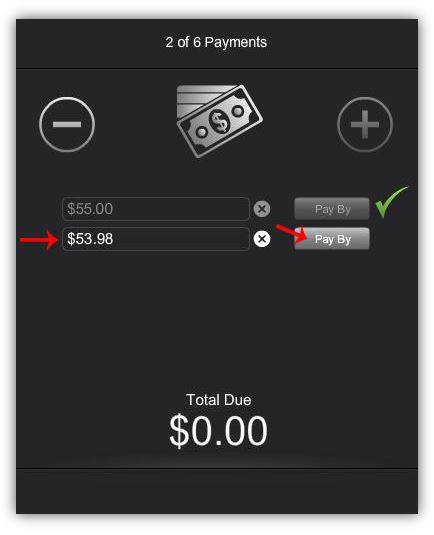
- Enter the REMAINING BALANCE, into the second field. Once entered, click the PAY BY button.
- Select the SECOND PAYMENT METHOD (check) from the PAYMENT OPTIONS screen.

- Enter the PAYMENT DETAILS (check number) and click PROCESS.
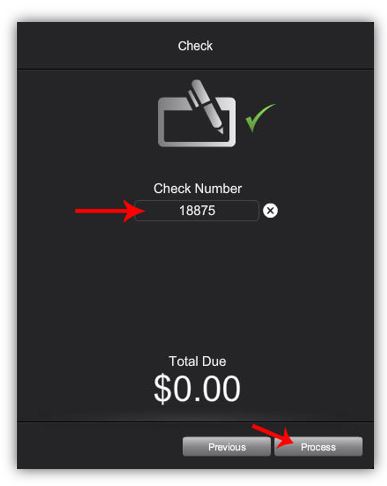
- Select desired receipt preference.
- Once desired receipt method is selected, click the DONE button.

- Repeat steps until all desired payment methods are complete and the balance due is paid.
Video Tutorial:
Comments
0 comments
Please sign in to leave a comment.